Knowledge Base: API
Last updated: January 7, 2026
The Knowledge Base API integration enables Charlie to fetch live data in real-time, ensuring conversations are powered by current, accurate information beyond what's stored in static knowledge sources. This guide explains how it works, configuration requirements, use cases, management strategies, and key insights for leveraging dynamic data effectively.
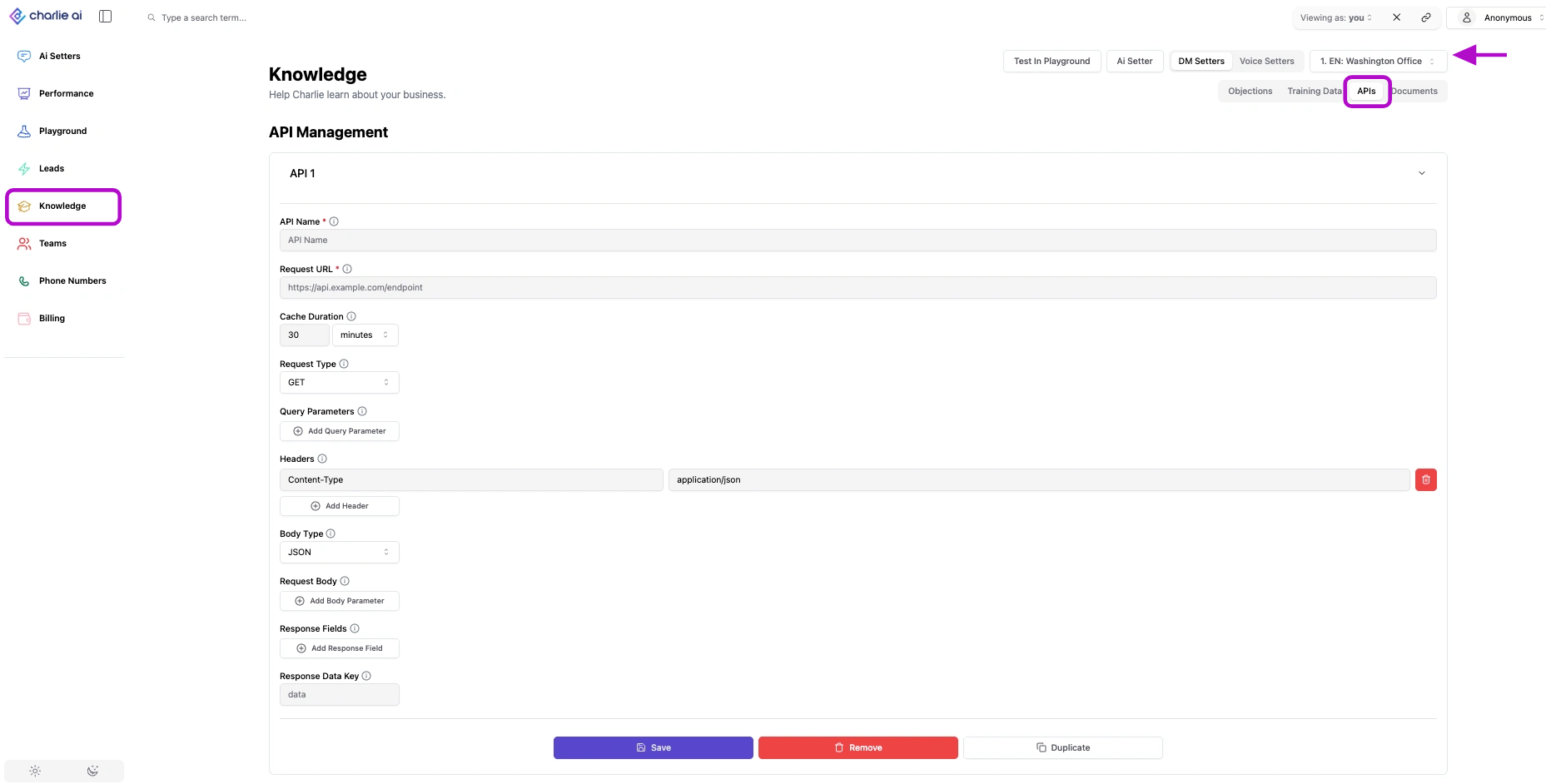
Purpose
Verify real-time status of orders, appointments, or services
Pull dynamic content that updates too frequently for manual knowledge base updates
Configuration Requirements
Technical Prerequisites
API Endpoint Access You need a functioning API endpoint that Charlie can call to retrieve data. This typically requires:
A stable, accessible URL
Proper authentication credentials
Available endpoints and parameters
Setup Process
API Endpoint Preparation
Ensure your system has appropriate API endpoints configured and accessible. Work with your technical team or service provider to:
Verify endpoints are active and responding
Confirm authentication methods
Test response formats
Document available data fields
In Charlie's admin dashboard
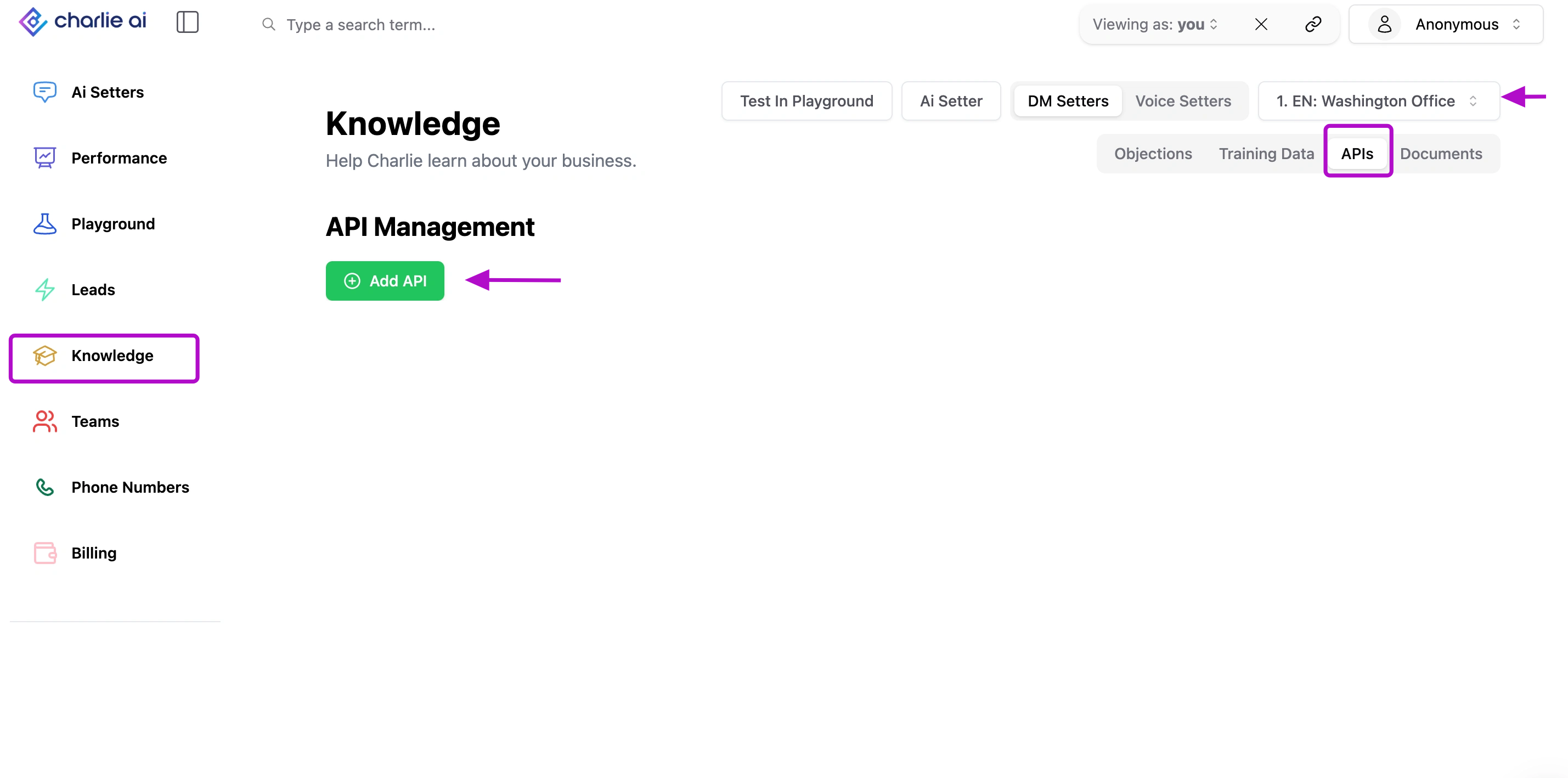
1. Add API
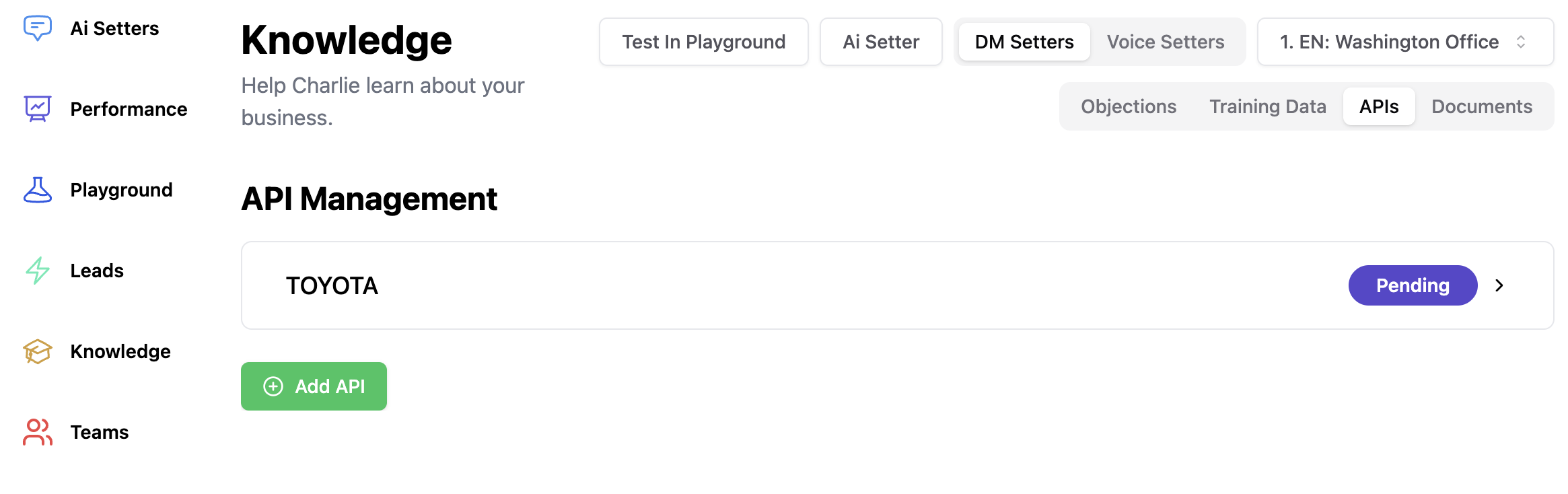
go to "KNOWLEDGE TAB" in the left side menu -> select an AI Setter from the drop down menu -> make sure you're within the API tab -> click in the green button to add an API
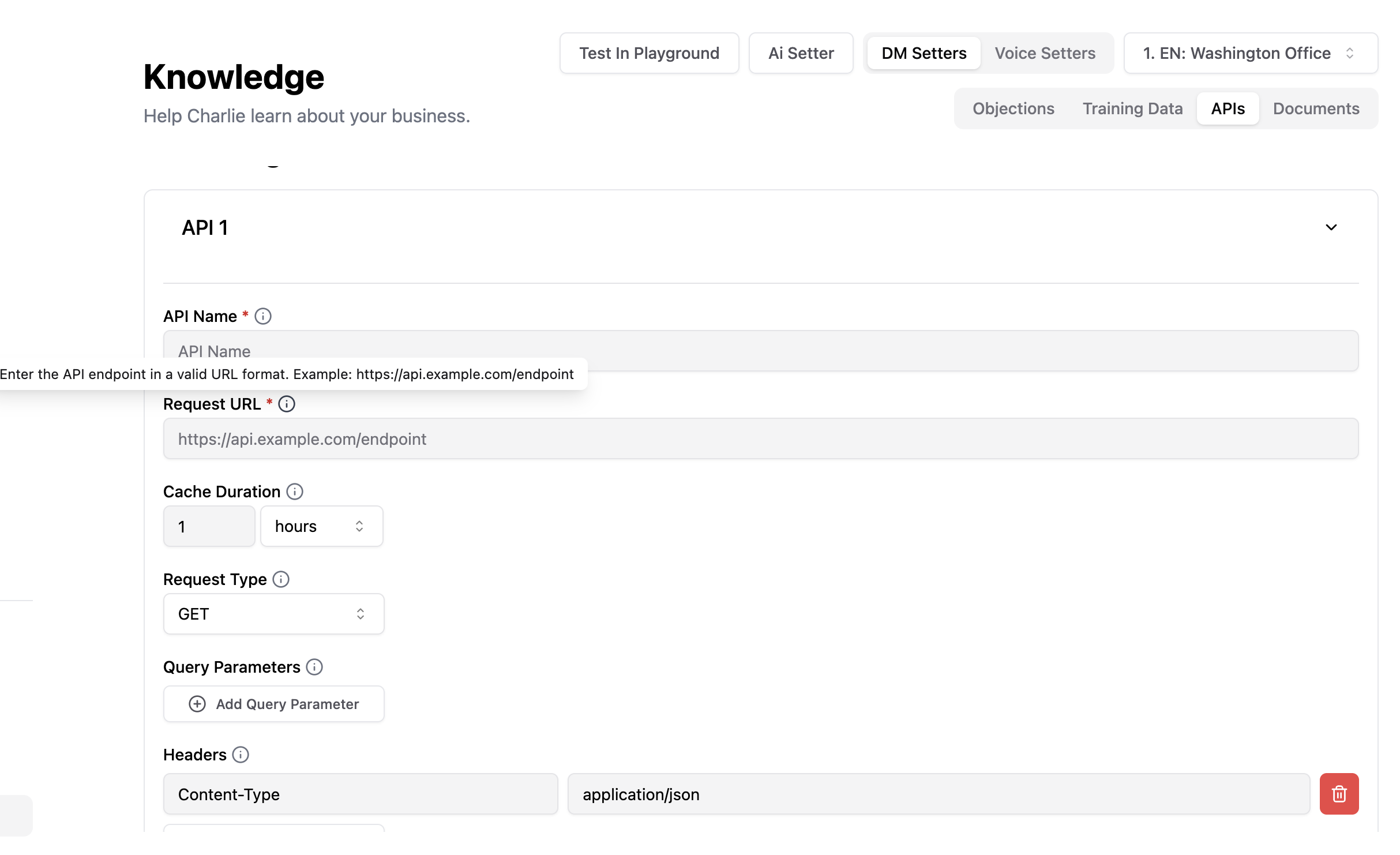
2. Fill out all information
Include the details from where it's going to be requesting the real time data, the name that will identify for you the API, and all details for the configuration. Each field has it's own tooltip that will guide you with a clear explanation of information that you should include there.
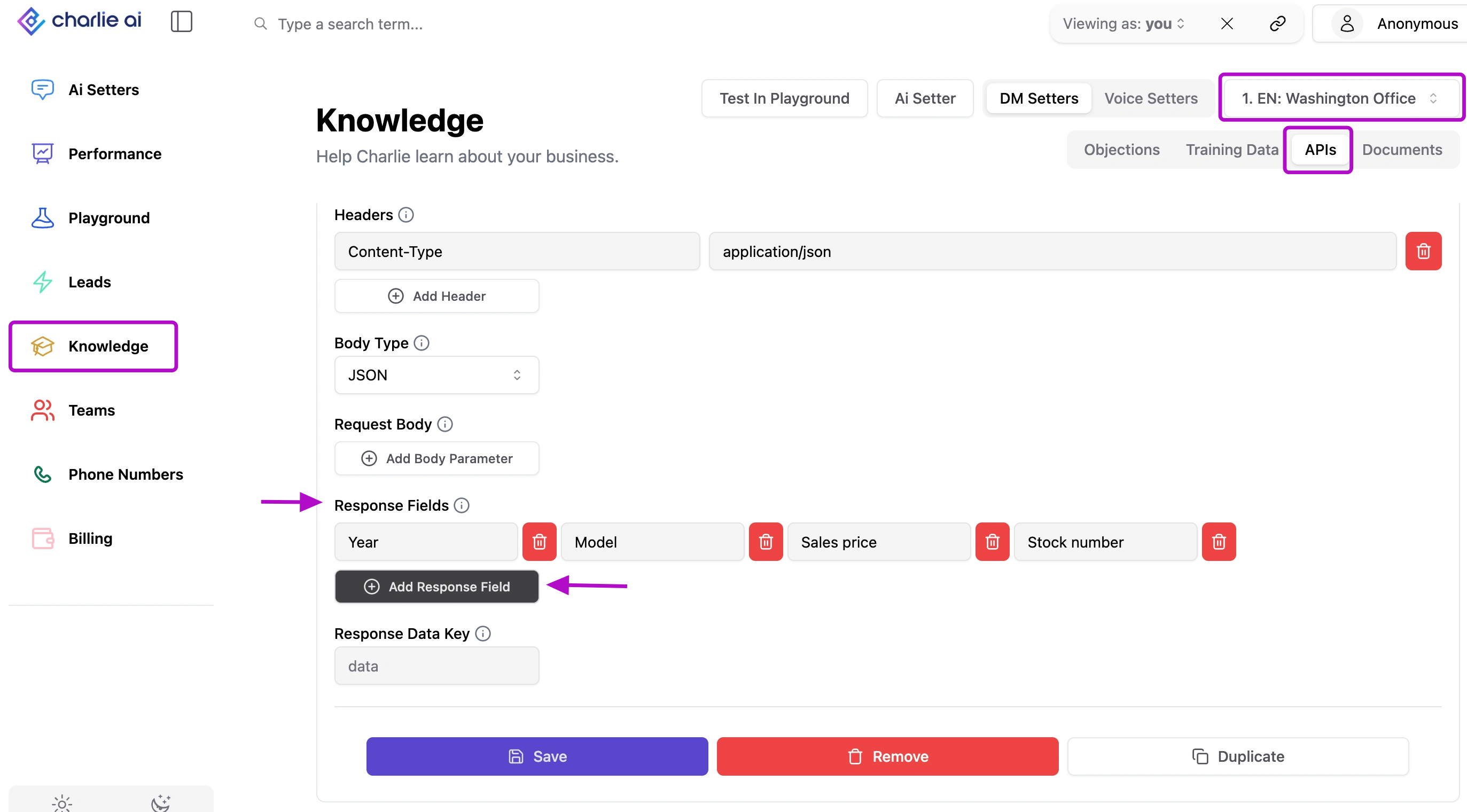
3. Define response fields
You can get a lot of information with this function, but it's important that you define the responses you need to get. In this field you can define the fields that the API will deliver in every consult it makes.
4. Validation
After you finish with the configurations, hit save and the API will have a "pending" status, while Charlie process it to integrate that information into his knowledge base. After it's fully integrated it will show a green "connected" label instead.
Troubleshooting Common Issues
API Call Failures
If Charlie can't retrieve API data:
Verify API endpoint accessibility
Check authentication credentials
Review rate limits (may be exceeded)
Confirm network connectivity
Incorrect Data Display
If Charlie presents wrong information:
Validate source data accuracy
Check data field mappings
Review data interpretation logic
Test with known data samples
Slow Response Times
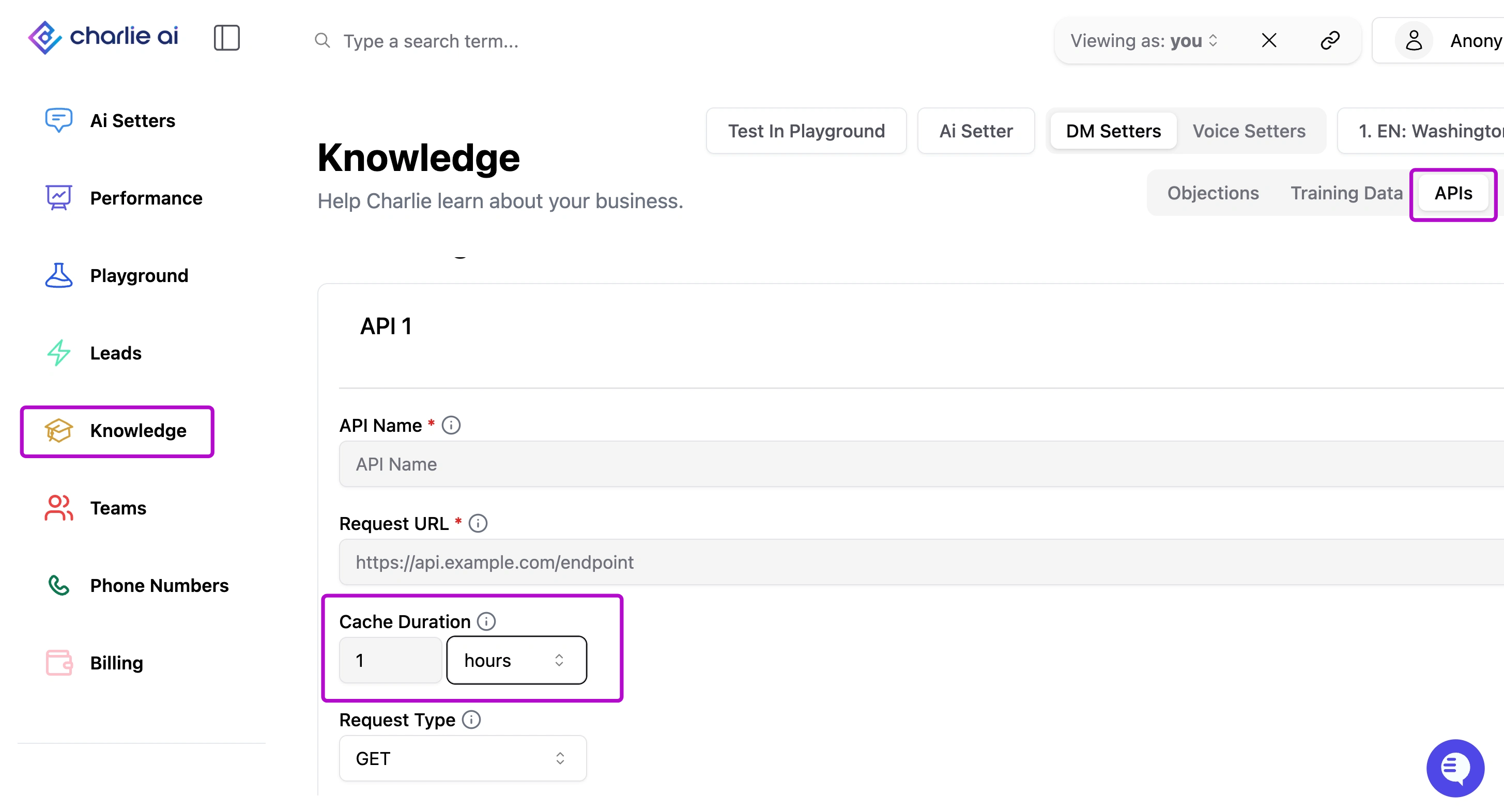
You can configure the cache duration to set a different timeframe between the data updates, and ensure the best response time possible. Select the value and unit you prefer, this can be adjusted again at any time.
Visual guidance: Cache duration
Key Insights
API integration shifts your mindset from "what information do we load" to "what information do we connect to." This requires different planning and maintenance approaches than static knowledge.
API integration is powerful but adds technical complexity. Ensure you have the resources to maintain integrations properly before implementing them.
Begin with one or two high-value API integrations. Master those before expanding to additional systems. Complexity compounds quickly with multiple integrations.